In this step of the tutorial you learn how to enable localization in your Kanzi Studio project, how to prepare the text content in your Kanzi application for the translators, and how to add translated text content to your Kanzi application. You also learn how to create a trigger in your Kanzi application to change locales.
Assets for this tutorial
The assets you use in this tutorial are stored in <KanziWorkspace>/Tutorials/Localization/Assets:
Project directory contains a Kanzi Studio project that you can use as a starting point for this tutorial.
Text directory contains the .po files that contain the translated text content of the starting point project.
<KanziWorkspace>/Tutorials/Localization/Completed project directory contains the completed Kanzi Studio project of this tutorial.
Enable localization and import the translations
To enable localization and import the translations:
Open the Kanzi Studio project located in <KanziWorkspace>/Tutorials/Localization/Assets/Project/Localization.kzproj, or create a Kanzi Studio project that comprises a completed Kanzi application the content of which you want to localize.
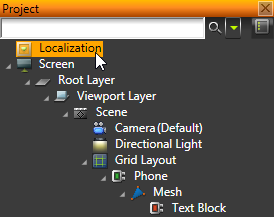
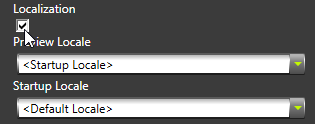
In the Project select the project root node and in the Properties enable the Localization property, and confirm that you want to convert all text content.
When you enable localization:
Kanzi Studio replaces the Text properties with the Text Resource properties in all Text Block and Text Layer objects. The Text Resource property enables you to set which text resource you want to use for each locale. When Kanzi Studio replaces the Text properties with the Text Resource properties, the Text Resource properties get the values from the Text properties.
If you do not already have a localization table, Kanzi Studio creates one, sets it as the default localization table, and adds all currently existing text resources to that table. A localization table stores the localized text resources and information about which locale uses which project resources.
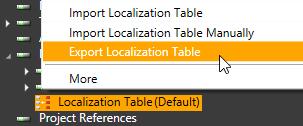
In the Library > Localization right-click the localization table Localization Table (Default) and select Export Localization Table. Kanzi Studio exports the localization table template to a .pot file format to <ProjectName>/Localization/<LocalizationTableName>. When you localize your Kanzi application for the first time, send the .pot file to the translators. This is the template file that contains strings and their context for each text resource in the localization table. Translators use the .pot template file to translate the text content for each locale. Result of their translation is one .po file for each locale. For this tutorial you can find the translated .po files with Finnish (fi_FI locale) and German (de_DE locale) translations in the <KanziWorkspace>/Tutorials/Localization/Assets/Text directory.
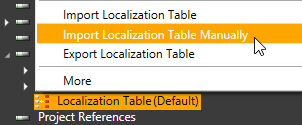
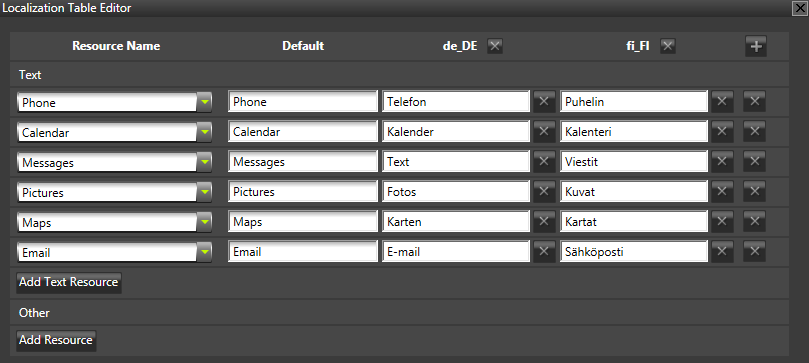
In the Library > Localization right-click the localization table you exported, select Import Localization Table Manually, go to <KanziWorkspace>/Tutorials/Localization/Assets/Text and import both .po files. Kanzi Studio creates locales specified in the .po files and adds the translations from the .po files to the localization table. Kanzi uses localization tables to store the localized text resources and information about which locale uses which project resources. Double-click the localization table to open it.
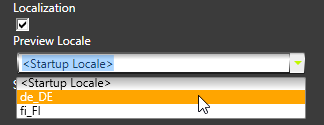
(Optional) If you want to immediately see how each of the locales work in Kanzi Studio, in the Project select the root project node, and in the properties set the Preview Locale property to the locale you want to see in the Preview.
Create triggers to change locales
You can change the locale in your Kanzi application with a trigger that sets the locale. In this part of the tutorial you create one button for each locale.
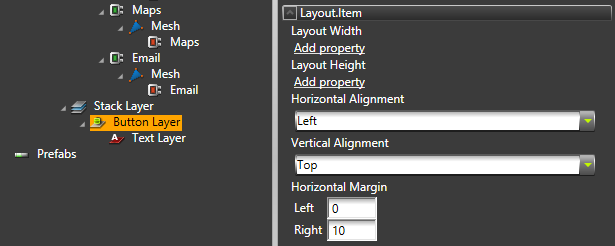
In the Project > Viewport Layer create a Stack Layer.
In the Stack Layer create a Button Layer, add the Horizontal Margin property, and set the Right attribute to 10.
Add to the Button Layer and a Text Layer. You use a trigger in the Button Layer to set the locale and the Text Layer to show the name of the locale.
Right-click the Text Layer, select Disable Localization for Object, and in the Properties in the Text property enter the name of the locale this Button Layer represents. For example, set the Text property value to English. You disabled the localization because you want to keep the names of the locales the same regardless of the currently selected locale.
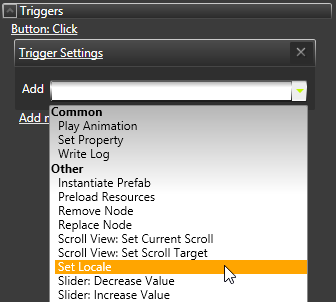
In the Project select the Button Layer, and in the Properties add to the Button: Click trigger the Set Locale action.
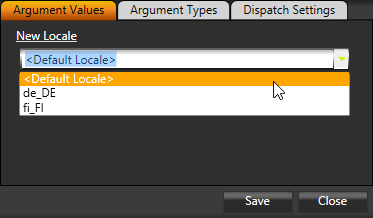
In the Argument Editor set the New Locale property to the locale to which you want to switch using the selected Button Layer. For example, select the <Default Locale> to use this trigger to switch to the locale you use as the default locale. In this tutorial, this is English.
In the Project right-click the Button Layer and select Duplicate until you have as many buttons as you have locales.
For each Button Layer set:
Text Layer's Text property to the locale the selected Button Layer represents.
Set Locale action's New Locale property to the locale to which you want to switch using the selected Button Layer.
For example, for German, set the Text property to Deutsch, and in the Set Locale action set the New Locale property to de_DE. In the Preview when you click the locale name, Kanzi Studio changes the text in the Kanzi application to that locale.